Install new Printer Paper
Provided: Thermal Paper Rolls, Printer Key.
Tools Required: None.
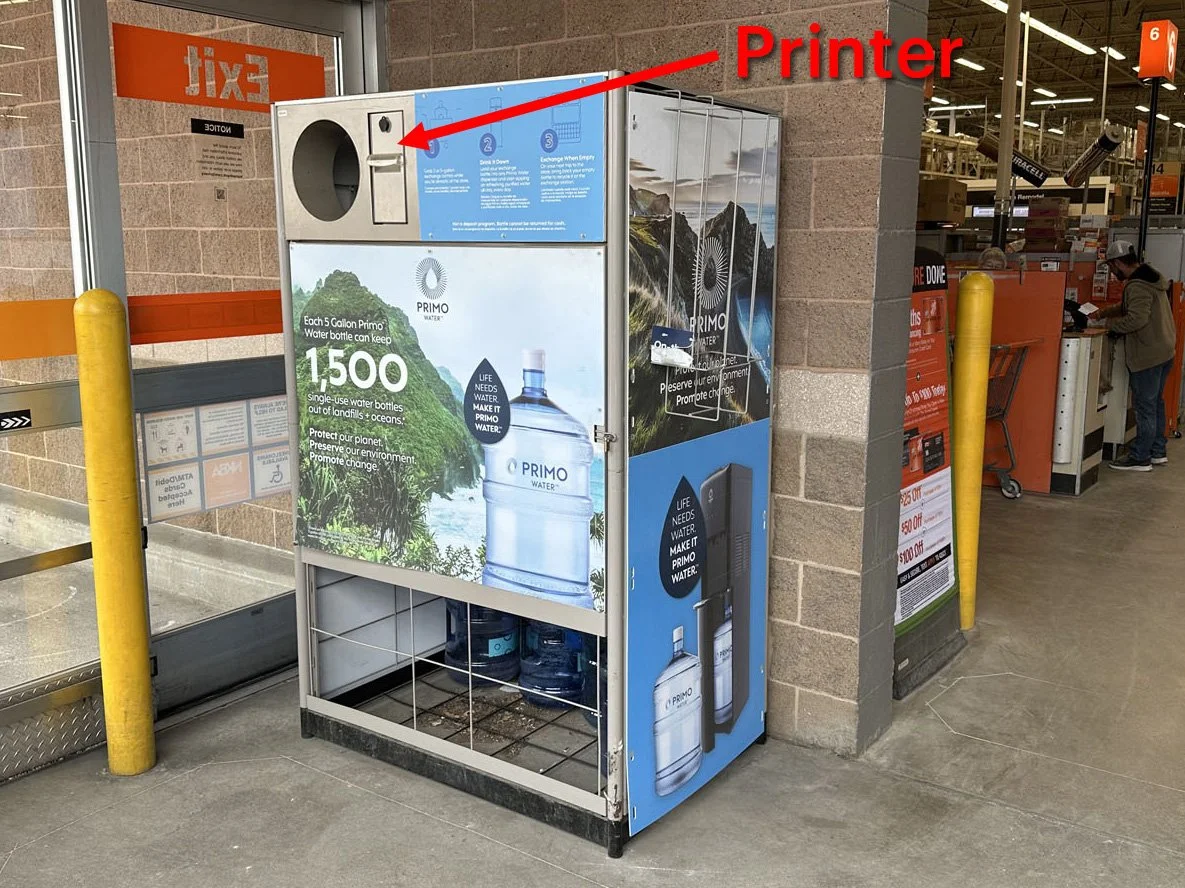
1: Find the PrimoWater Return Center. These are often placed outside the store, but sometimes can be found inside by the PrimoWater displays. If the store only has a Combo Unit with printer, then it will be located inside.
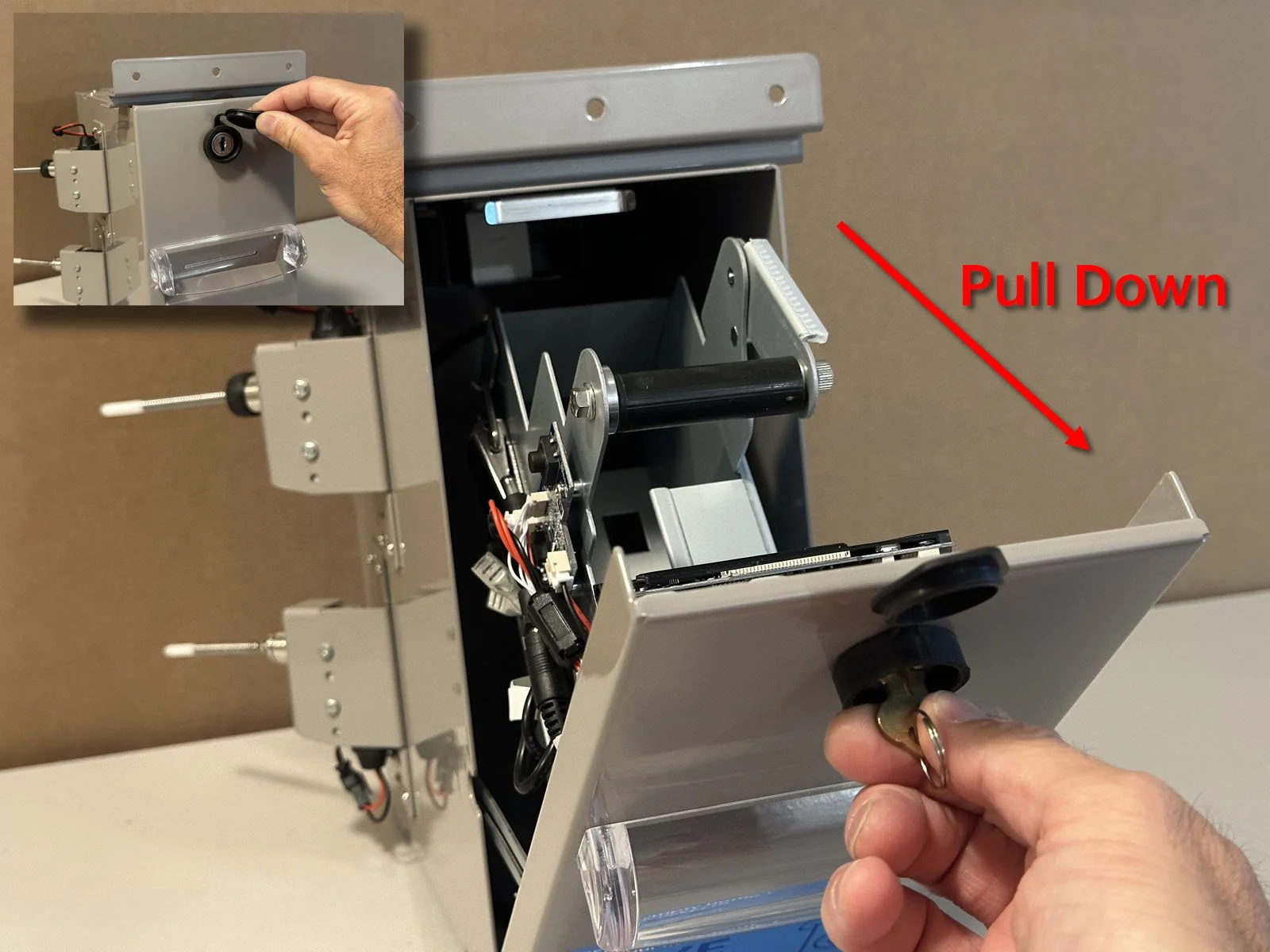
2: Open the printer using the brass key (provided) and pull the door down towards you.
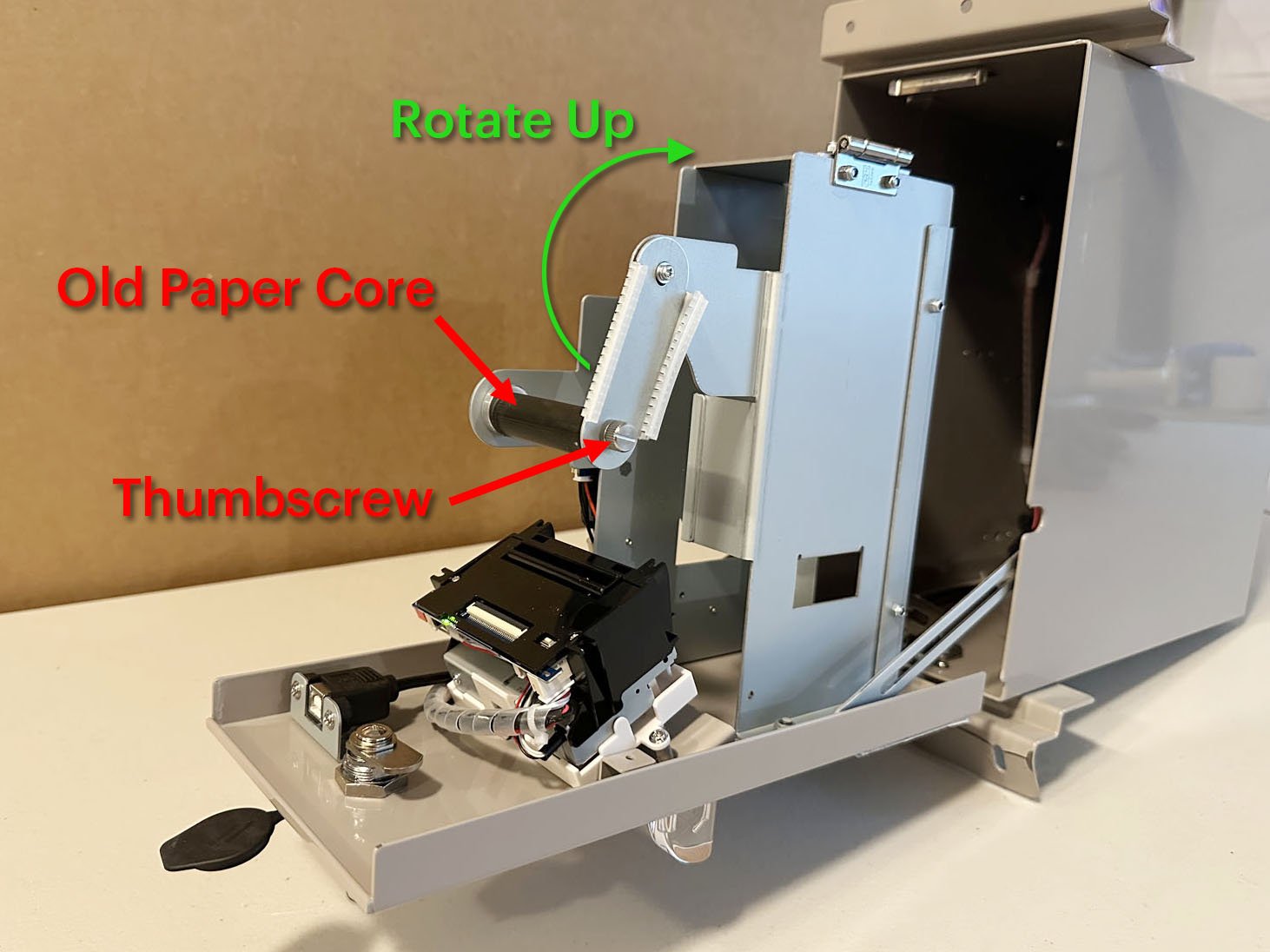
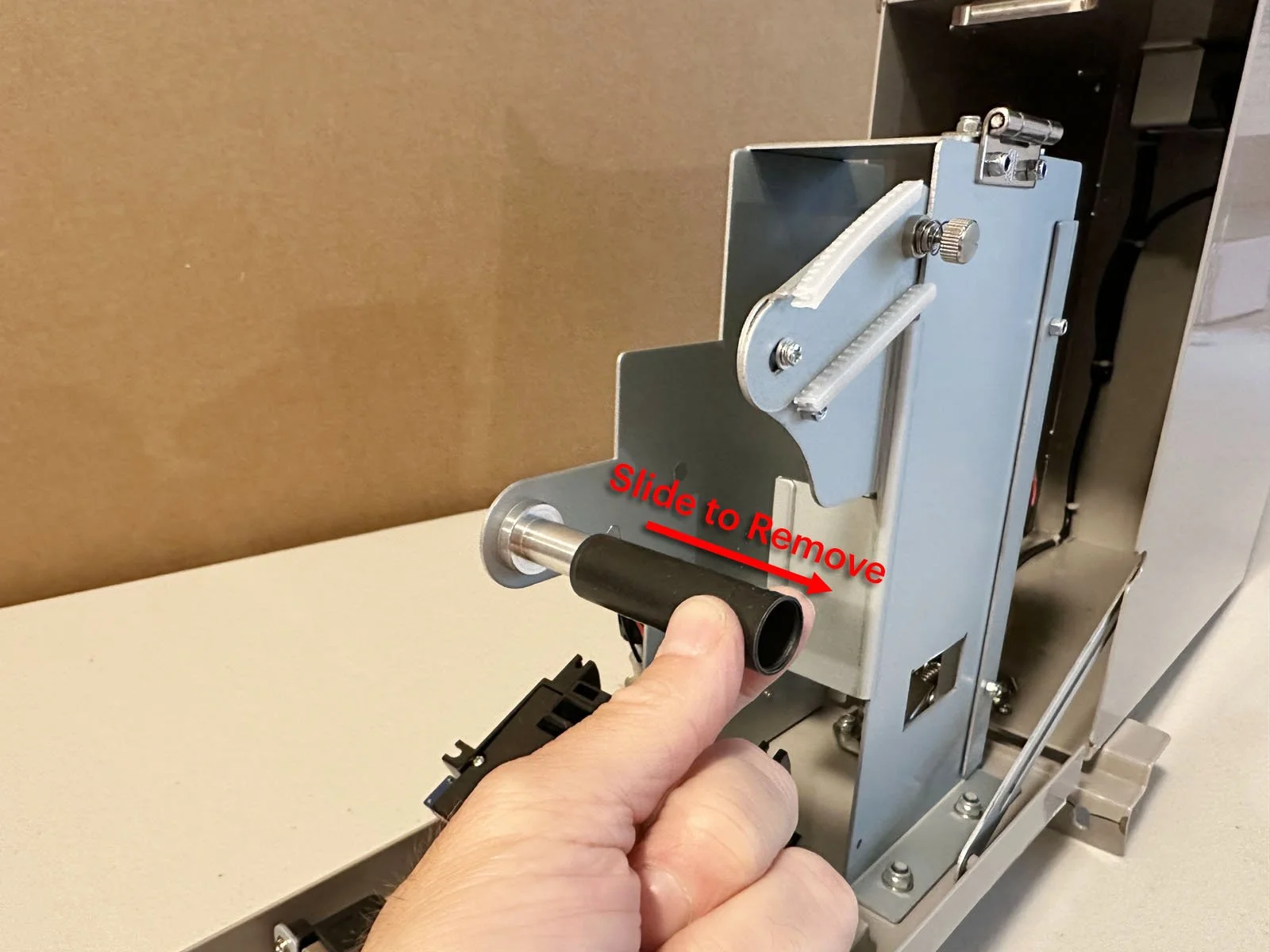
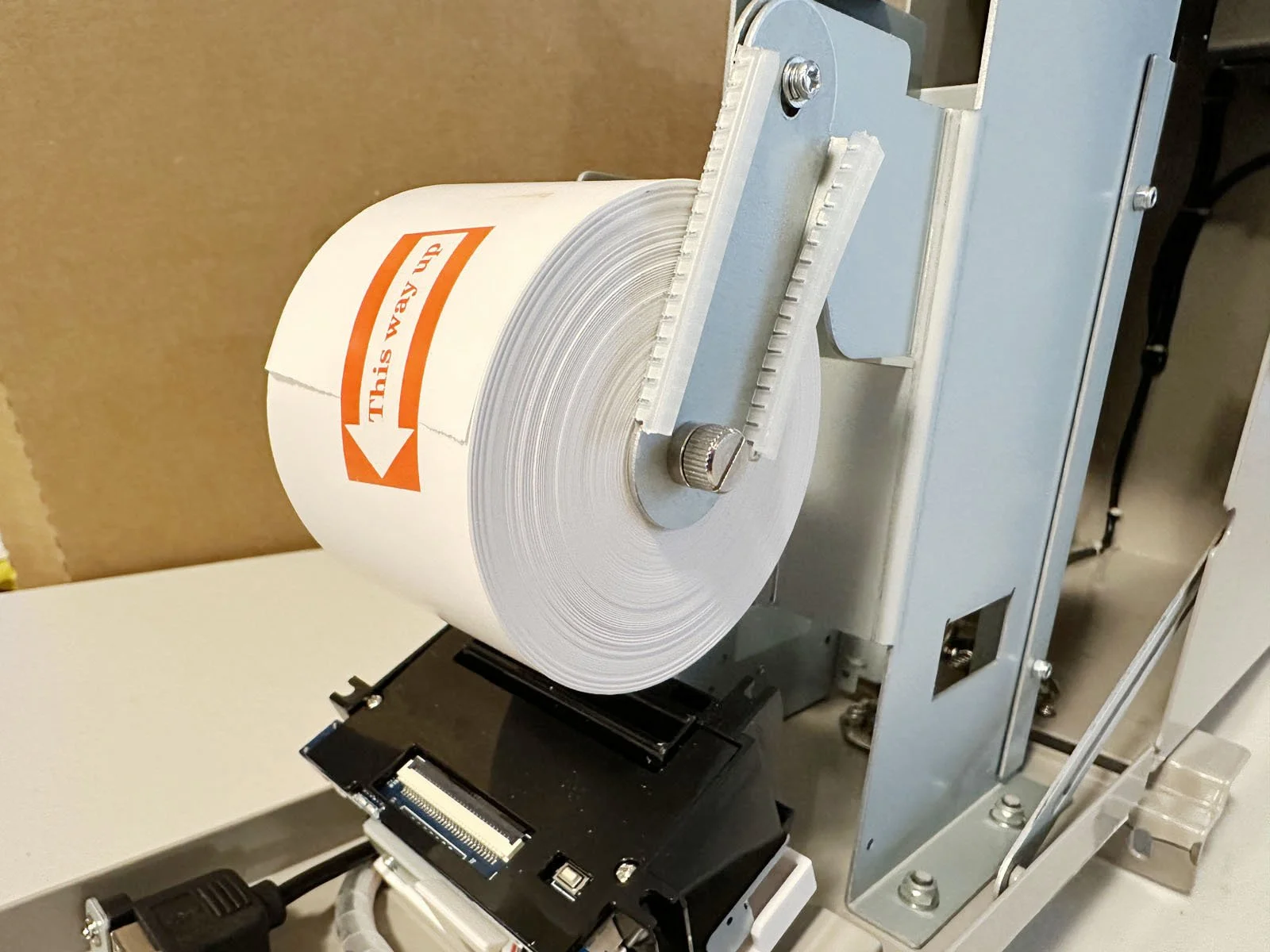
3: Loosen the thumbscrew on the right side of the paper roll, then rotate the bracket up and out of the way. Remove the old paper roll core.
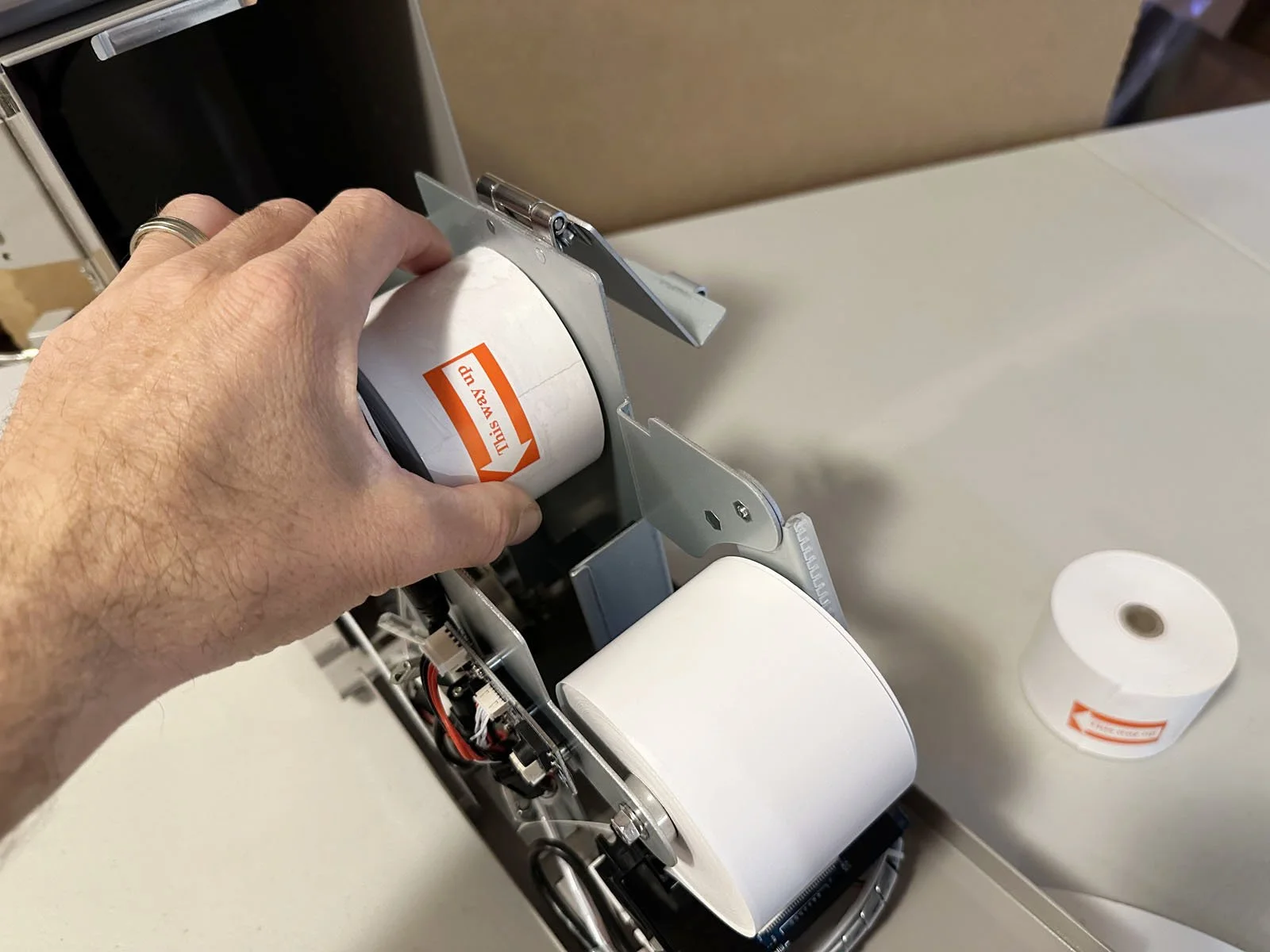
4: Insert the new paper roll on the bar, making sure the arrow on the “This way up” sticker is facing towards you. Then rotate the bracket back down and tighten the thumb screw.
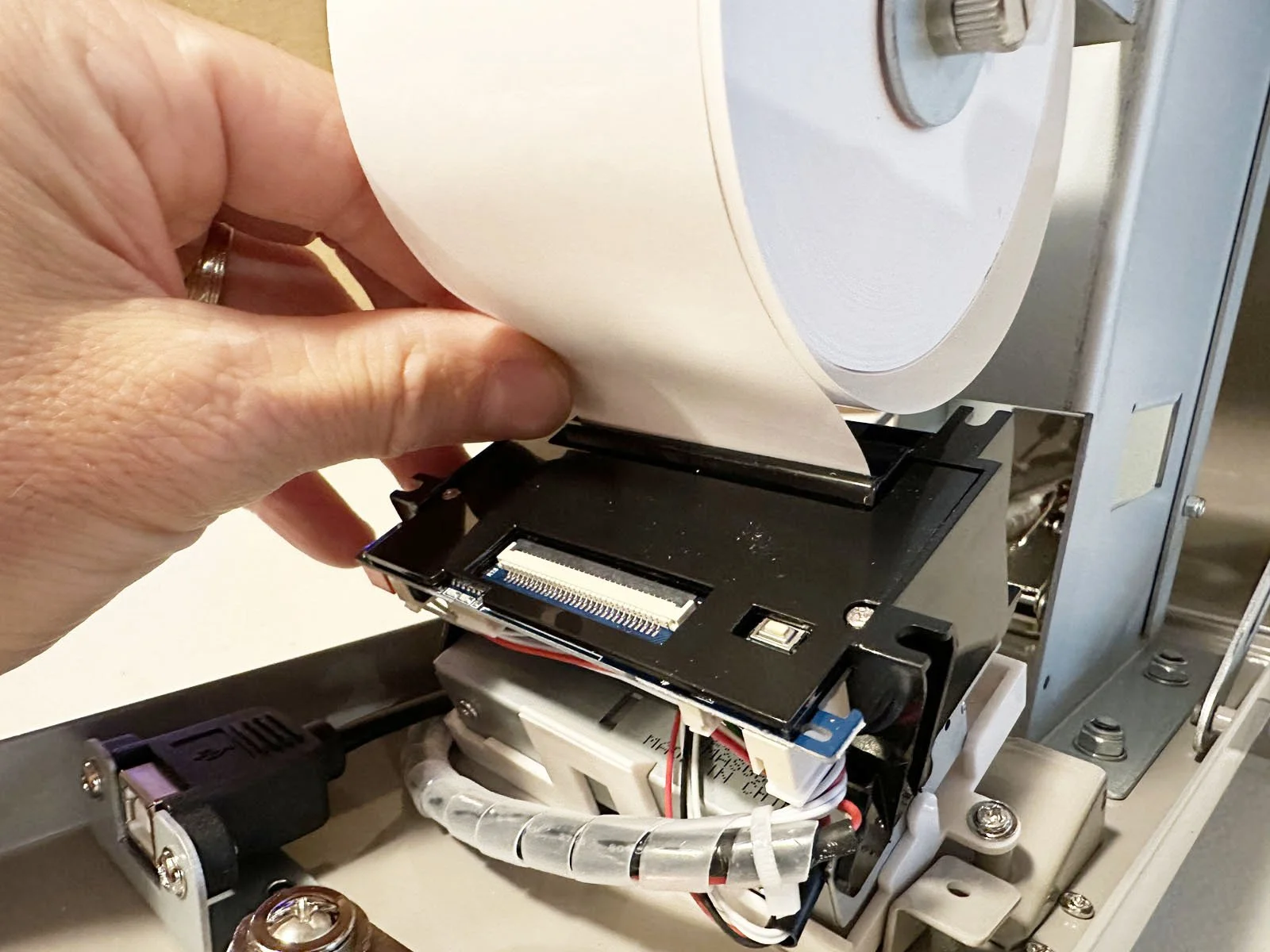
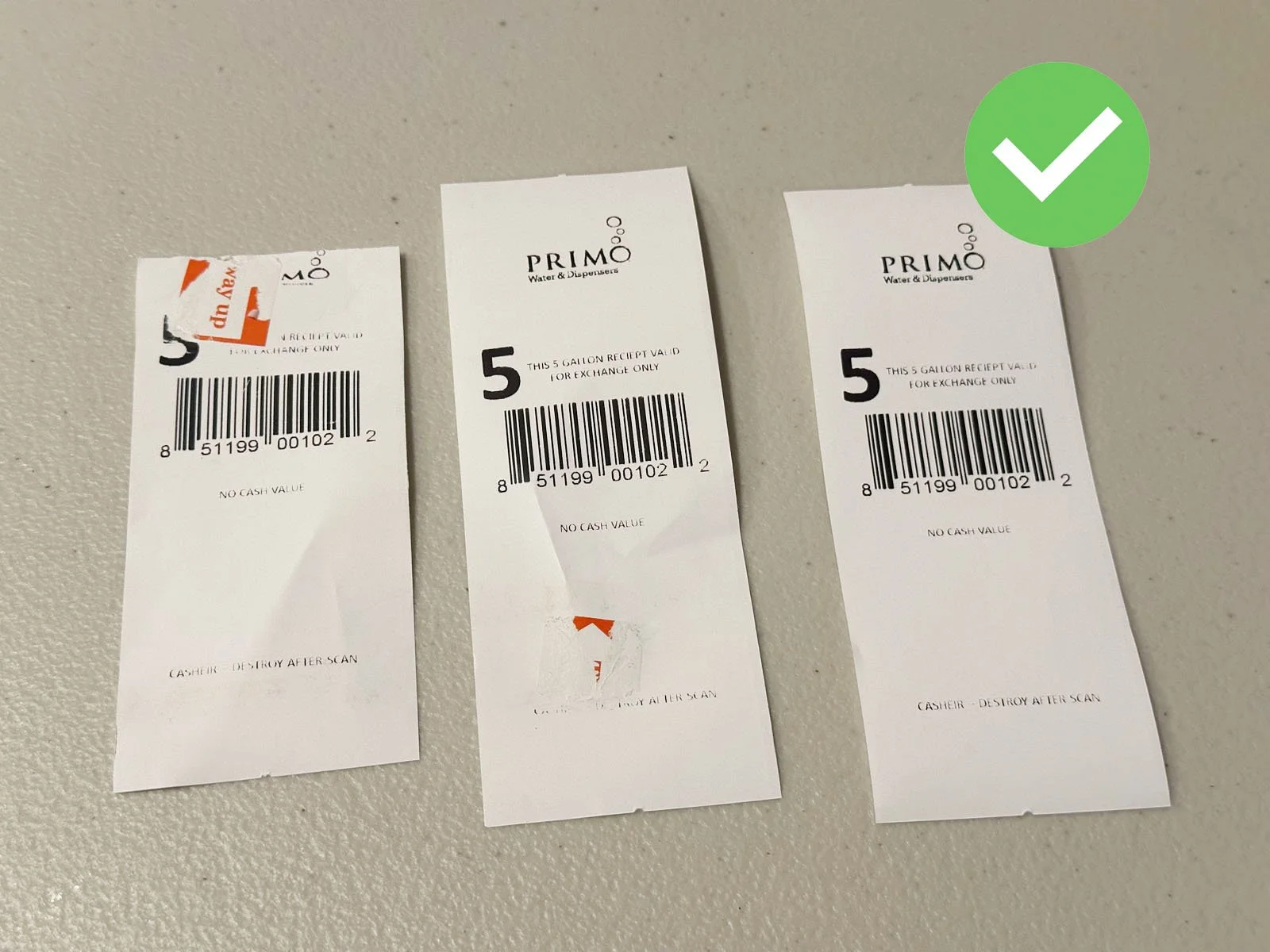
5: Remove the sticker on the paper roll, then insert the end into the slot in the back of the printer. Press the small test button on the front right of the printer while pushing the paper into the slot. A ticket should print out the front of the printer. Tip: If the green light is not lit, then you’ll need to press both actuator bars at the same time (on the side of the printer) to wake it up, then try the test button again.
6: If there is any residue from the sticker on the printer roll, press the test button a couple of times until you get a clean ticket. Tip: If the paper is coming out, but nothing is printing on the ticket, that means you have inserted the roll upside down. Go back to step 3 and then flip the paper roll around.
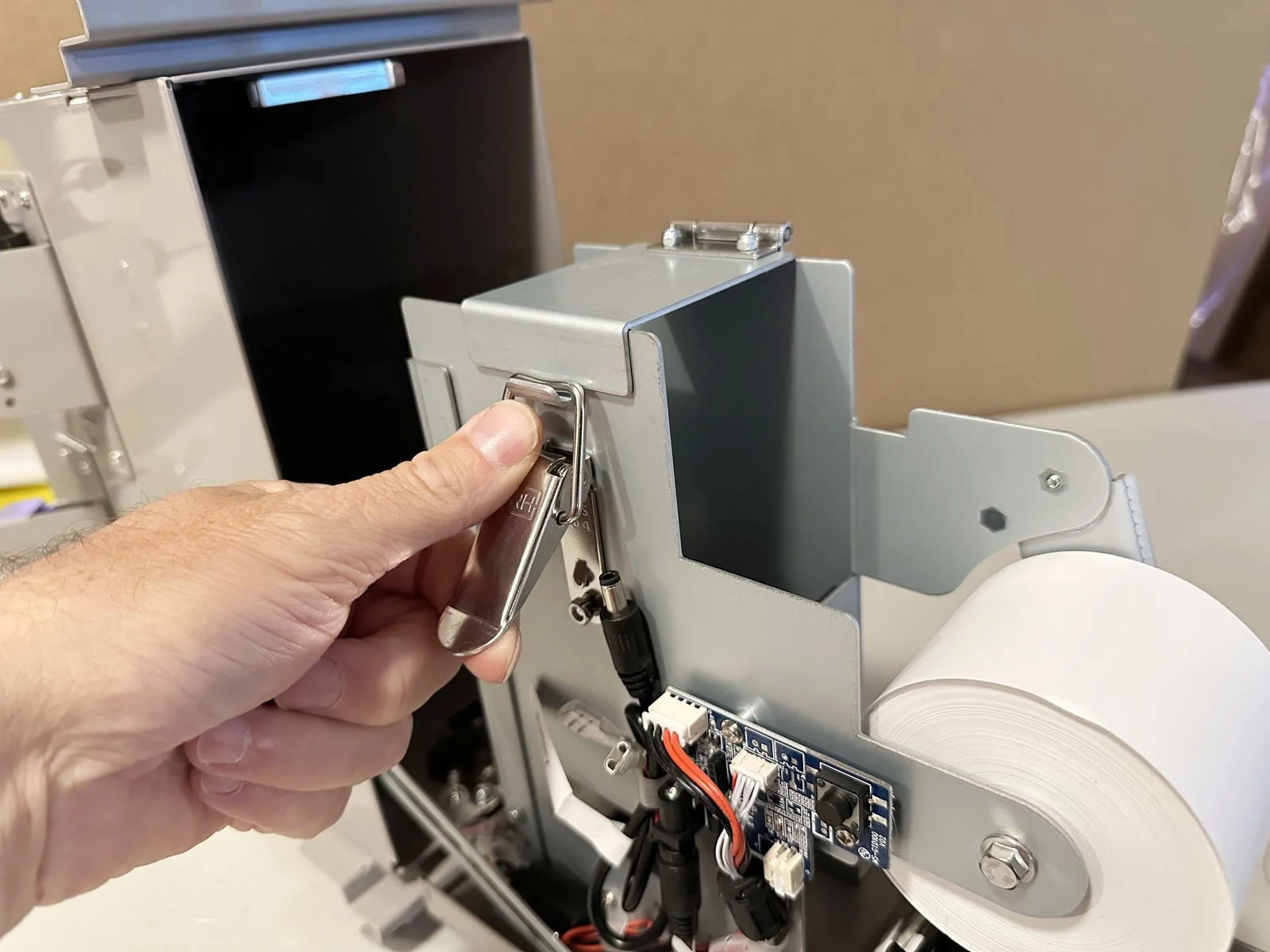
7: If you were provided additional rolls of paper, these should be placed in the storage slot inside the printer. Release the latch on the left side and flip open the top bar. Insert up to 2 paper rolls, then close the top bar and latch it shut.
8: Close the printer door and lock it shut. Give the brass printer key to the Customer Service desk at the store and let them know their printer is working again.
9: Complete your Verification Form in FastField mobile app (Apple or Android). Your username and password can be found in Field Nation under the Buyer’s Custom Fields.